GETTING STARTED
Welcome to the Zidro Solutions Help Center. This multi-module productivity platform integrates natively inside your local deployment of Autodesk® Inventor®, embedding complex automation mechanics directly into your Ribbon UI workspace.
How to use it
Grab the installer from the official download page. Pre-requisite: Autodesk Inventor should be closed before you run it.
Some browsers (like Chrome) may flag the file as "not commonly downloaded". Click "Download suspicious file" or "Keep" to proceed — this is normal for new, independently published software.
Since the installer is self-published and not yet code-signed, Windows will flag it as coming from an "unknown publisher" the first time you run it. Click "More info", then "Run anyway" to continue — this is expected.
The installer copies all necessary files directly into the standard Inventor Add-Ins directory. No manual file copying required.
Open Autodesk Inventor, go to Tools → Add-Ins, find "Zidro Solutions" in the list, and enable it. The Zidro tab will then load on your main Ribbon.
Visual Guide
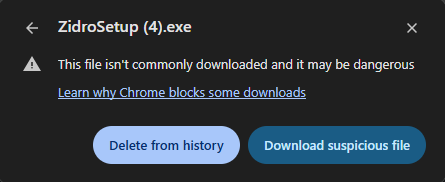
Browser may warn about an uncommon download — click "Download suspicious file" to keep it.
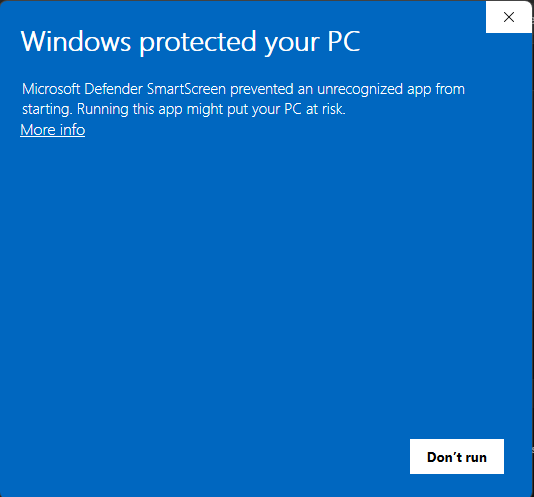
Windows SmartScreen will show this — click "More info" to reveal the Run button.
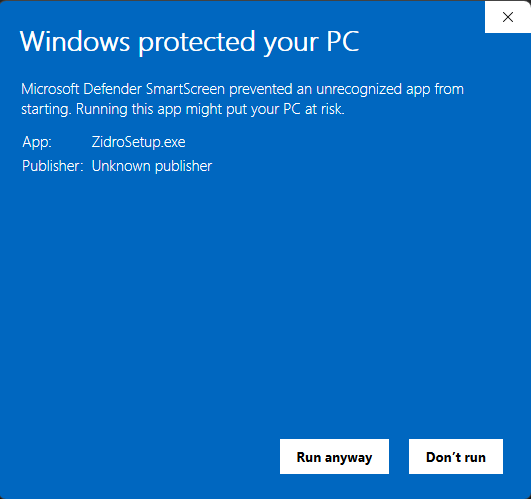
After clicking "More info", click "Run anyway" to start the installer.
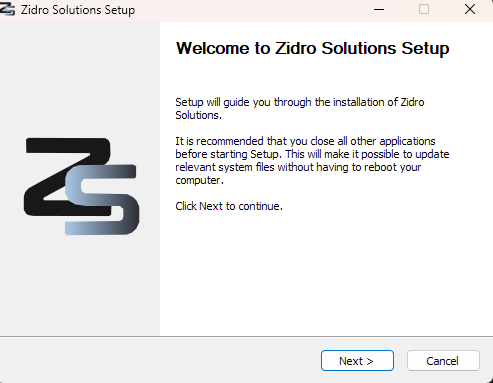
The setup wizard — click "Next" to begin installation.
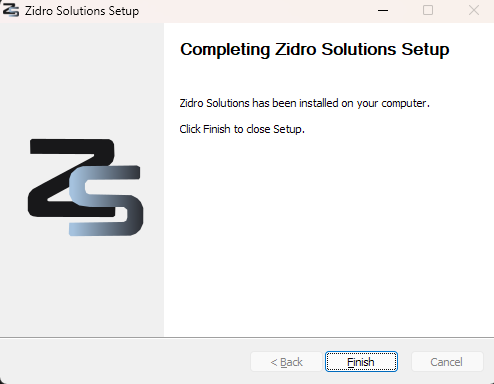
Installation complete — click "Finish" and open Inventor.
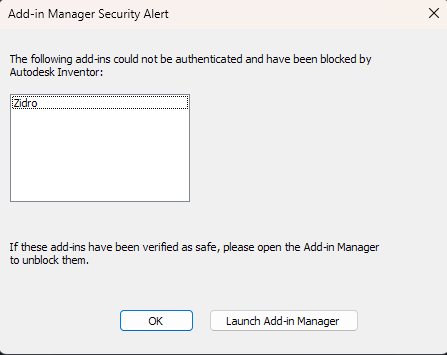
Inventor will show a Security Alert — click "Launch Add-in Manager".
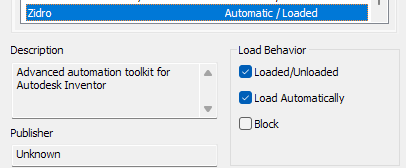
Check both boxes for Zidro, restart Inventor — done.
Configuration Parameters
Ensure Inventor is closed. Open Windows "Add or remove programs", locate "Zidro Solutions", and click Uninstall. The routine will safely clean up all Add-In files and system configurations from your system.
Every functional tool inside the Zidro panel features progressive dual-stage tooltips. Hovering over a UI control and striking the F1 key intercepts Autodesk's standard documentation routing and opens this specific page.
Under the hood
Zidro Solutions is currently distributed as a free, independent Community Edition. On first launch, the plugin sends a lightweight usage ping to our own servers for basic install statistics only — no invasive background telemetry, and no CAD data ever leaves your machine.